FTB Payments Business
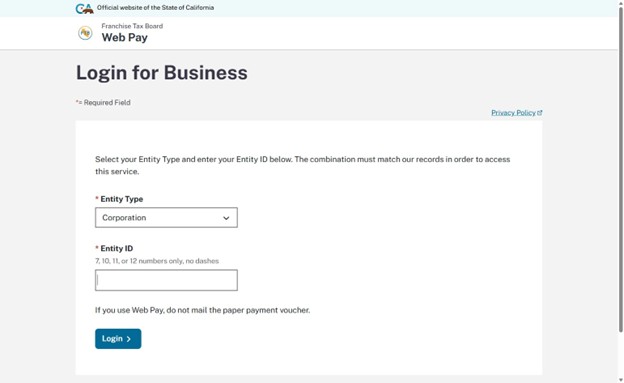
- Go to https://webapp.ftb.ca.gov/webpay/login/belogin?Submit=Use+Web+Pay+business and select your entity type. The webpage will then ask for your Entity ID. This is NOT your EIN number. This is your Secretary of State number, which can be found in the top left of your California Tax Return.
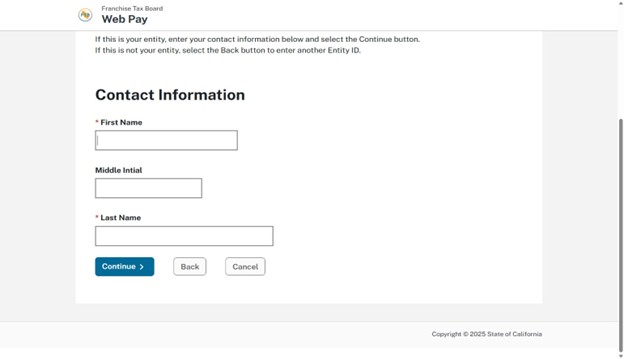
2. Enter your contact information.
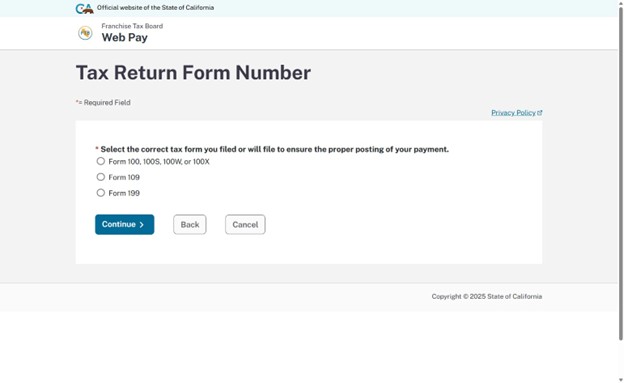
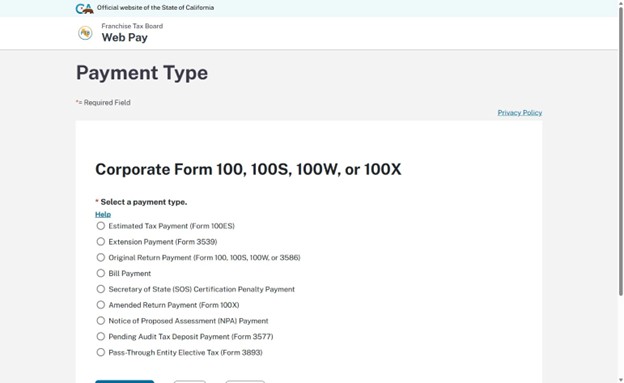
3. Select the tax form you are filing with California. The form number will be 100, 100S (pictured below) or a 568 if you are making an LLC payment (not pictured below).
4. The next page will have you filling out what kind of payment you are making. If you are paying the balance due to California select “Original Return Payment”. If you are making your California estimated payments, select “Estimated Tax Payment (Form 100ES)”.
5. The next page will ask you for the payment information. If your company goes by the standard calendar year for your taxes, make your beginning date January 1st, with the applicable tax year. Your end date will be December 31st of the same tax year. IF your company uses a different fiscal year, enter the appropriate beginning and end date for your fiscal year.
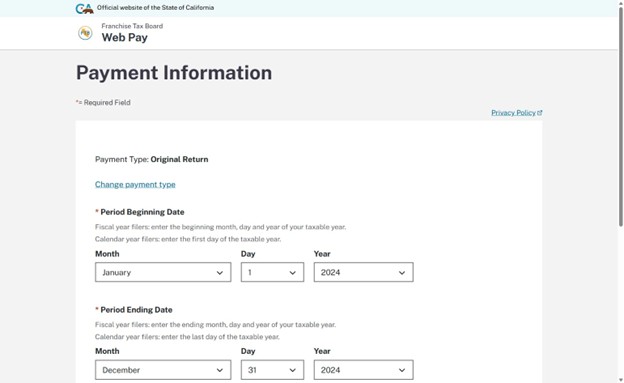
6. On the same page, enter the exact payment amount you will be making, and the date you would like the payment to go through.
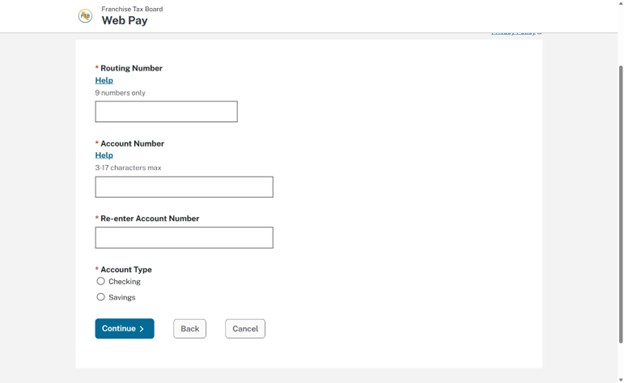
7. On the next page, fill out the account information of the bank account you would like to pay with. Your tax payment will come directly from there.
8. Next, enter your email so you can receive a payment confirmation. We will need a copy of this confirmation when we file your taxes, so please keep a record of it!
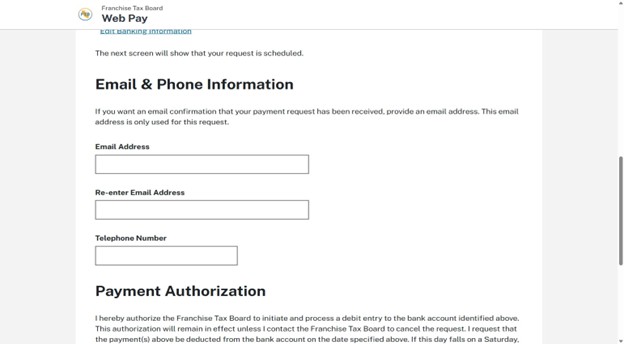
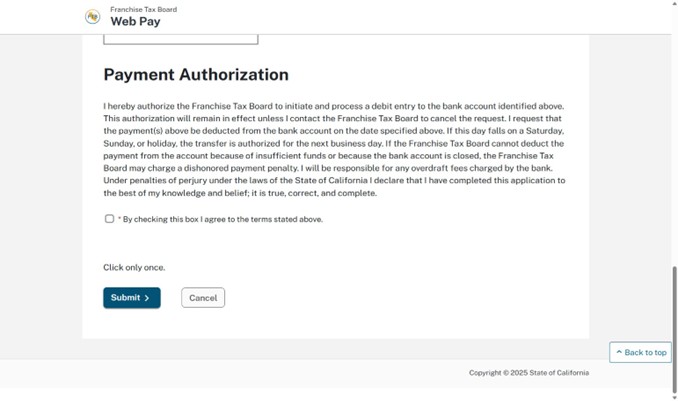
9. Agree to the Payment Authorization and submit. Your FTB payment should be good to go!